
| Hosting Account Login | Webmail Login | About Sea-Ex   Â
|
|---|
 Complete Website Design and Hosting Packages |
||||
| Â | How to Use File Explorer to Transfer FilesFile Explorer in Microsoft Windows can be used to access your Server101 webspace directly, you can work with files and folders on the FTP servers much like you work with them on your own computer. You can view, download, upload, rename, and delete files and folders. Read on to find out more.1. In the Control Panel (Start Menu -> Settings -> Control Panel) double click on the 'Internet Options' Icon and click on the 'Advanced' tab on the top of the dialog box. Find the 'Use Passive FTP' option and make sure it is checked, click 'Ok' and close the Control Panel. 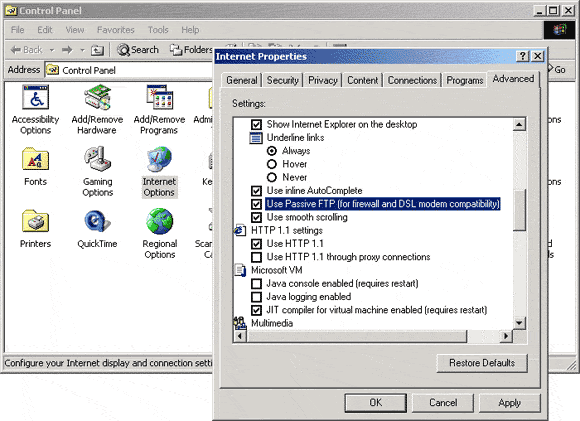 2. Open a new File Explorer or Internet Explorer window and type 'ftp://userid@ftp.server101.com' (userid is you hosting User ID). 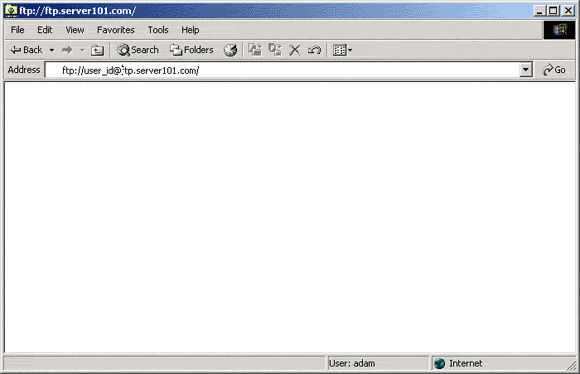 3. You will then be prompted to authenticate, enter the relevent details. 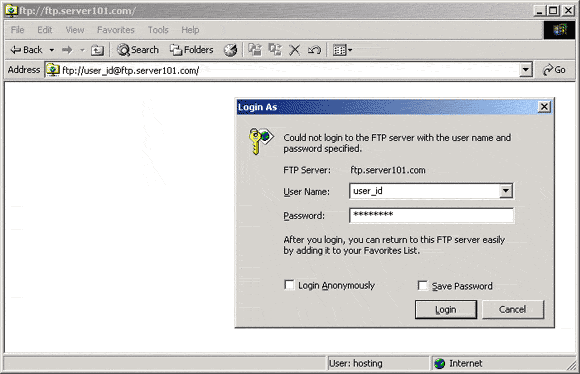 |
 | ||
|
Home | Website Design Services and Packages | Search Engine Optimisation and Search Engine Marketing About Sea Ex | Hosting Account Login | Webmail Login © 1996 -
Sea-Ex Home | FAQ |
||||