| Hosting Account Login | Webmail Login | About Sea-Ex   Â
|
|---|
 Complete Website Design and Hosting Packages |
||||
| Â | How to Setup Netscape NavigatorThis tutorial will guide you through configuring Netscape Navigator Gold to move files between your computer and your Server101 web site. You'll need to have Navigator Gold ready to go and be online to the internet. 1/ Creating a Page So that you can put a HTML page on your (Server101) web site using Navigator Gold, you need to make (create) a page. To make a page with Navigator Gold, follow these steps:
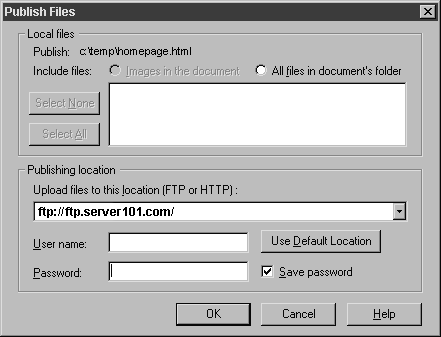
From the File drop down menu, choose "File", then choose "Upload File". The Publish Files dialogue box will open, and look similar to this:
a/ Enter these settings in the Publishing Location part of the window: Upload Files to this Location:
ftp://ftp.Server101.com/ b/ If you like, you can save your password so that you don't have to enter it every time you log in. If you would like to enable this feature, check the box marked "Save Password". When you have finished entering these settings, click "OK", and you will connect to Server101. The Security Information box may open, if it does, just click "continue", and your file will upload. Tips(i) HTML Filenames are case sensitive.
(ii) MemberNames and Passwords are case sensitive
In the top half of the "Publish Files" dialog box above, you'll see a section titled "Local Files".
To see the page you just uploaded, use the following URL in your web browser: http://membername.server101.com/filename (available about an hour after joining) or http://www.server101.com/~membername/
|
 | ||
|
Home | Website Design Services and Packages | Search Engine Optimisation and Search Engine Marketing About Sea Ex | Hosting Account Login | Webmail Login © 1996 -
Sea-Ex Home | FAQ |
||||