How to Setup AOLFTP
Go online to AOL, then go to "keyword: ftp"
 A screen will come up. Click on "Go To FTP" (looks like the picture
on the left).
A screen will come up. Click on "Go To FTP" (looks like the picture
on the left).
A dialog box will appear:
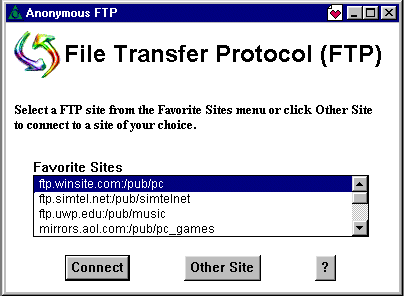
Click on "Other Site".....
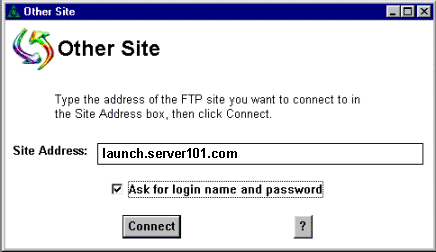
Put in the ftp.server101.com address in the "Site Address" box. Make
sure the tick is in the box for "Ask for login name and password".
Click on "Connect".
The "Remote Sign-On" dialog box will appear...
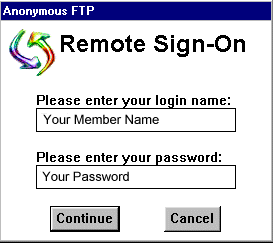
Enter the following:
- Your login name: the User ID you chose at sign up
- Your password: the password you chose at sign up
The User ID and password are case sensitive. If you have a User ID
of "Harold" (capital H), it must be entered as it is shown (ie with
the capital H). Entering "harold" (lowercase h) won't work. This goes for
the password as well, and files you have uploaded. Click on "Continue".
The "Connected to ftp.server101.com" dialog box will come up.
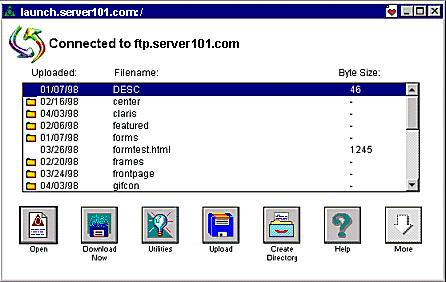
A list of files/folders you have uploaded will display. Buttons across the
bottom of the box allow you to upload and download files, create folders,
etc. There is a tutorial on using AOL's FTP client, go to "keyword: FTP".
Return to the FAQ and Tutorials Main Menu